
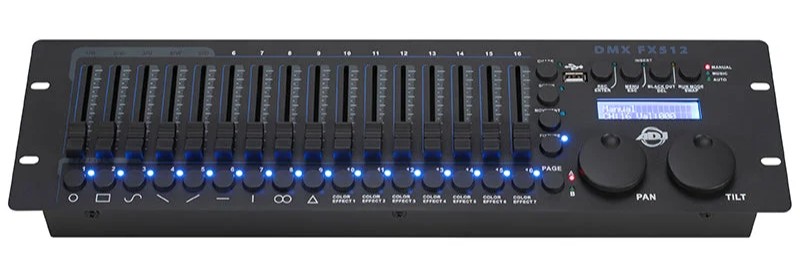
The DMX FX512 console from ADJ is a simple to use fader based console that contains pre-built effects. In order to use it properly, you will need to patch your fixtures into the console properly and assign their attributes to the appropriate faders. In this article, we will go over the procedure to accomplish this.
Please note that the DMX FX512 supports up to 32 fixtures with a maximum of 18 channels per fixture. If your fixture's minimum DMX Channel Mode requires more than 18 channels, this is not the right console for your application.
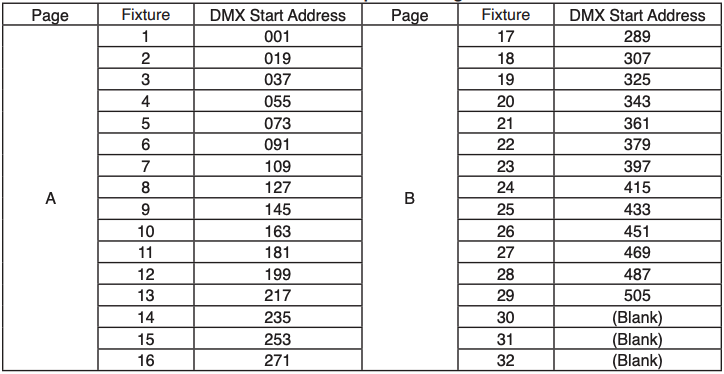
Default Patch and Addressing scheme:
In the DMX FX512, the default patch assumes every fixture occupies 18 channels of DMX, therefore your fixture will need to be addressed in a multiple of 18 (ie: 1, 19, 37, etc...) as detailed in the chart below unless you create a custom patch:
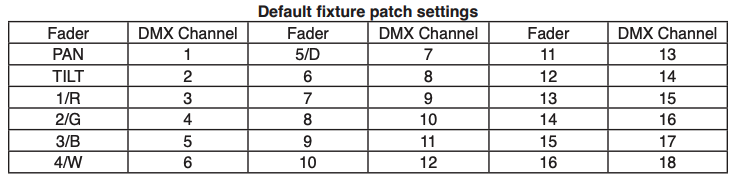
Additionally you will need to build a "fixture profile" in the console by mapping the fixture's attributes to the appropriate faders on the console. For example, if you are patching a moving head, you must assign the pan/tilt channels of the moving head to the PAN/TILT wheels on the DMX FX512 if you want to change its default setting. If you are patching an LED fixture, you must assign the Red, Green, Blue, White, and Dimmer channels to the corresponding faders. The DMX FX512 will then be able to run the built-in movements and fade in/out effects with the patch setting. This is shown in the chart below:
To set up the patch, enter the menu by pressing and holding the menu button for 2 seconds.
1. Rotate the PAN wheel to locate “01. Patch fixture,” and press ENTER to confirm.
2. Select a fixture; only one fixture can be selected at a time.
3. Press SWAP to switch between the four settings: DMX START ADDRESS, FADER CHANL, FADER REVERSE, and COLOR FADE.
4. In “DMX START ADDRESS,” rotate the PAN wheel to adjust the DMX start address. Press ENTER to save, or press DEL to delete the existing DMX start address.
5. In “FADER CHANL,” rotate the PAN wheel to select a fader name within “PAN” to “16.” Rotate the TILT wheel to adjust the address of the corresponding DMX channel within 1-40. Press ENTER to save the patching, or press DEL to delete the existing patching.
6. In “FADER REVERSE,” rotate the PAN wheel to select a fader name within “PAN” to “16.” Rotate the TILT wheel to select YES or NO; YES means to set the corresponding channel reverse, and NO means inverse. Press ENTER to save the setting.
7. In “COLOR FADE,” you can enable or disable the fade in/out time of the fixture’s color channels. Rotate the PAN wheel, select YES or NO; YES means to enable, and NO means to disable. Press ENTER to save the settings.
8. To copy a patched fixture to a new fixture, press and hold the number button of the patched fixture, then press the number button of the new fixture. Press ESC to exit patch setting. The settings of “DMX START ADDRESS” + “FADER CHANL” - 1 = FADER DMX ADDRESS.
For example: FIXTURE 1 is set to 11 as its DMX start address and its 1/R fader channel is set to 1. Move the 1st fader (1/R of FIXTURE 1), the output of the 11th DMX channel will be changed. If FIXTURE 1 is set to 11 as its DMX start address, and its 1/R fader channel is set to 10, move the 1st fader (1/R of FIXTURE 1), the output of the 20th DMX channel will be changed. While in patching mode, if a “!” mark appears on the LCD display, it indicates an overlap in the patching of DMX channels. This should be corrected to avoid errors in the DMX output.