
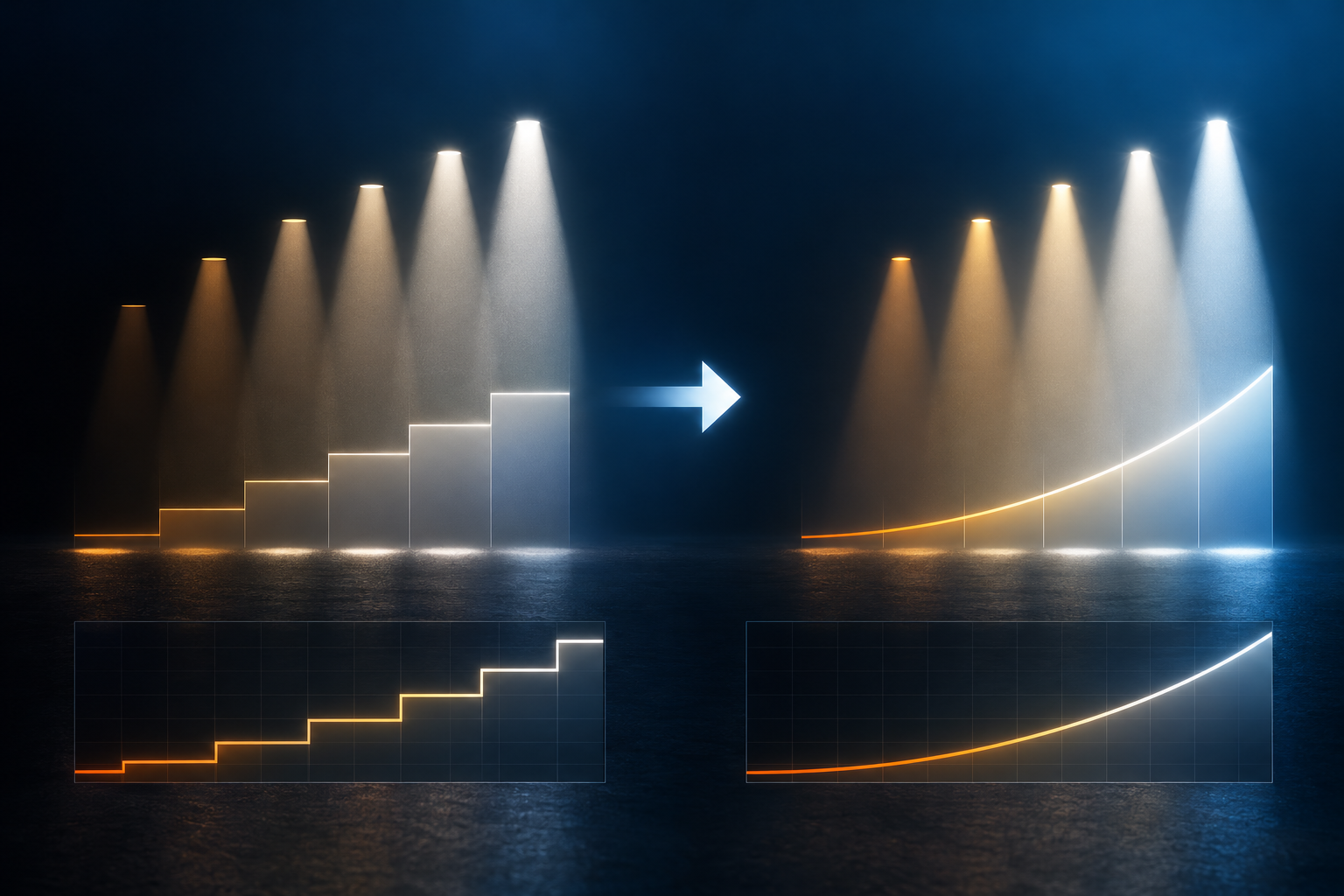
Quick 30-Second Fix
If dimming looks stepped or abrupt at low intensity, make these two changes on the fixture:
Change the dimmer curve from Linear to S-Curve or Square Law. Go to MENU > PERSONALITY > DIMMER CURVE > S-CURVE. This remaps how DMX values translate to output so that more steps fall at low levels, where the eye is most sensitive to change.
Set DIMMER DELAY (or Stage/Tungsten mode) to STAGE. This smooths the transitions between incoming DMX values. [confirm: the exact menu name, as this article also refers to DIMMER SPEED and DIMMER MODE]
The sections below explain each setting and what to check if the quick fix does not resolve the problem.
Step-by-Step Diagnostic and Resolution Procedure
Access the Dimmer Curve Sub-Menu
Navigate to MENU > PERSONALITY > DIMMER CURVE.
Review the four onboard mathematical response curves. Each one defines how a DMX input value maps to LED output intensity.
Linear: A direct 1:1 ratio between DMX input and LED output intensity.
Square: High precision at the low end. It spreads values across the lower DMX ranges.
Inverse Square: Fine tuning at high intensity levels.
S-Curve: Smooth, slow transitions at both the bottom (0–10%) and top (90–100%) of the intensity range.
Select the curve that suits the problem. For stepping at low levels, choose S-Curve or Square, as described in the quick fix.
The diagrams below show the general shape of each curve. The horizontal axis is DMX input and the vertical axis is output intensity.
    [LINEAR]                 [S-CURVE]               [SQUARE LAW]

100%|     /              100%|      ,--          100%|       ,/
    |    /                   |     /                 |     ,/
    |   /                    |    /                  |   ,/
  0%|__/___                0%|__-'_                0%|__/'__
     0%   100%                0%   100%               0%   100%
Configure Dimmer Delay / Emulation Mode
Navigate to MENU > PERSONALITY > DIMMER SPEED (or DIMMER MODE). [confirm: which menu name applies to which fixture ranges]
Choose the behavior you need:
Select STAGE or ARCHITECTURAL to apply a smooth micro-step interpolation algorithm to incoming raw DMX changes. The fixture fills in the intermediate levels between DMX values, so fades look continuous instead of stepped.
Select OFF / TV for instant, non-interpolated cuts. The fixture follows each DMX change directly, with no smoothing.
For the stepping problem this article addresses, use STAGE or ARCHITECTURAL.
Patch 16-Bit Dimmer Channels on Console
Curve and smoothing settings can only do so much with a coarse control signal. Finer resolution at the source helps further.
Ensure your console patch uses Extended/16-bit profile modes. [confirm: the name of the profile or mode that provides 16-bit dimmer control]
Confirm that both the Dimmer and Dimmer Fine channels are patched and controlled. Using both gives 65,536 available intensity steps instead of 256.
Technical Background and Prevention
Human perception of brightness follows a logarithmic curve (Stevens' Power Law), making intensity changes at low light levels appear far more dramatic to the eye than changes at high levels. [confirm: Stevens' Power Law is a power-law relationship rather than a logarithmic one; check this wording against your source]
Standard 8-bit linear control provides only 2.5 step increments between 0–1%, causing visible stepping. Square and S-curves compensate by mapping more DMX steps to lower output levels. Combining one of these curves with 16-bit control and interpolation addresses the problem at three points: how steps are distributed, how many steps exist, and how the fixture moves between them.